Upgrade Guide
Overview
- This document is divided into three main sections: Enterprise Edition Upgrade, Personal Edition Upgrade, and Personal Edition to Enterprise Edition Upgrade.
- All upgrades require downloading, extracting, and installing the new software package, as well as entering a new license key to start using it.
- Data migration during an upgrade falls into two scenarios:
- If the old version used MySQL as its metadata database, the new version can reuse the same metadata database address by simply updating the configuration in the new version ( unless there is a significant version jump with changes to the metadata table structure, in which case you will need to manually execute SQL scripts to modify the schema—see the incompatibility notes in the Version Update Log).
- If the old version used the built-in SQLite metadata database, you must first export data sources, groups, and API configurations from the old version, then import them into the new version.
IMPORTANT
This document assumes operations are performed on a Linux system. If you are using Windows, right-click the bin/dbapi.ps1 file and select "Run with PowerShell" to launch the software.
IMPORTANT
You can obtain a commercial license for the upgraded version yourself.
Enterprise Edition Upgrade
1. Installation and License Acquisition
- Download the latest Enterprise Edition software from Download and extract it.
- Start the service directly via the command line:
bash bin/dbapi-daemon.sh start standalone. Locate the serial number at the bottom of the log filelogs/dbapi-standalone.log, contact customer support, provide the new serial number, obtain a new license, and enter the new license information into theconf/key.propertiesfile.
Note:
If you plan to install the cluster edition, copy the new version's software package to other servers and repeat the above steps (obtaining the serial number, acquiring a new license, and entering the new license) on each server.
2. Data Migration Configuration
Scenario 1: Metadata Database is MySQL
Configure Database Connection
- Modify the metadata database address in the new version's configuration file
conf/application.propertiesto point to the metadata database address used by the previous Enterprise Edition.
properties
# Metadata database address configuration—use the MySQL address from the old version
spring.datasource.dynamic.datasource.meta-db.driver-class-name=com.mysql.cj.jdbc.Driver
spring.datasource.dynamic.datasource.meta-db.url=jdbc:mysql://127.0.0.1:3300/dbapi?useSSL=false&characterEncoding=UTF-8&serverTimezone=GMT%2B8
spring.datasource.dynamic.datasource.meta-db.username=root
spring.datasource.dynamic.datasource.meta-db.password=root

access.log.writer=db

# If a logging database is used, configure its address to match the old version's settings
spring.datasource.dynamic.datasource.access-log-db.driver-class-name=ru.yandex.clickhouse.ClickHouseDriver
spring.datasource.dynamic.datasource.access-log-db.url=jdbc:clickhouse://127.0.0.1:8123/default
spring.datasource.dynamic.datasource.access-log-db.username=default
spring.datasource.dynamic.datasource.access-log-db.password=123456- Follow the instructions in the Installation Document to adjust your other configurations.
Start the Service
- For a standalone installation, run the command
bash bin/dbapi-daemon.sh start standalone. - For a cluster installation, copy the modified configuration file to other nodes and use the command
bash bin/start-all.shto start the service. - Once started, the original APIs will be available in the new version.
Scenario 2: Metadata Database is SQLite
Export Old Version Configurations
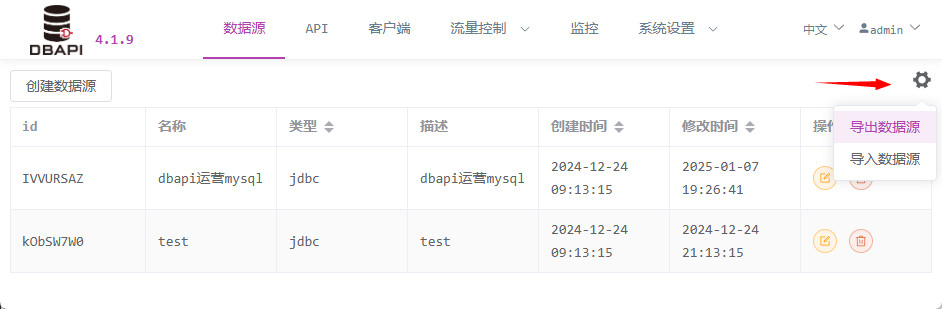
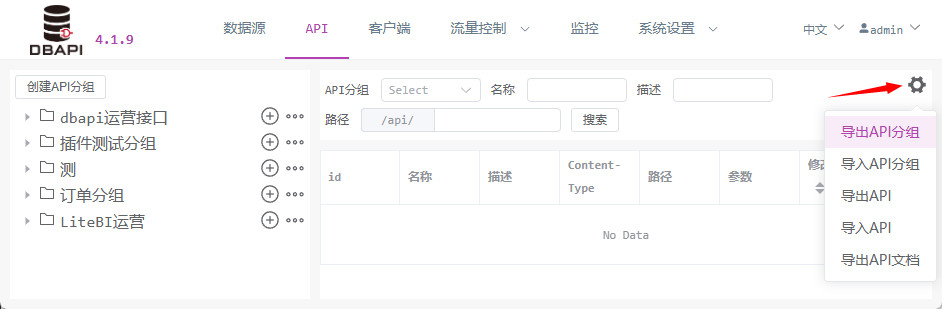
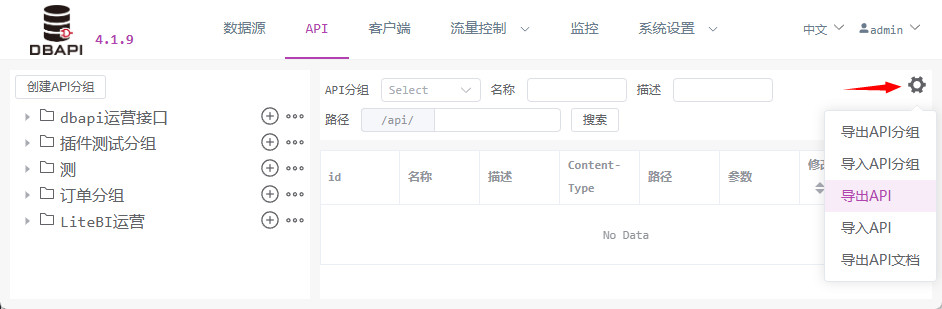
- First, export data sources, groups, and API configurations from the old version.
Configure New Version
- Adjust your configurations according to the Installation Document.
Start the Service
- For a standalone installation, run the command
bash bin/dbapi-daemon.sh start standalone. - For a cluster installation, copy the modified configuration file to other nodes and use the command
bash bin/start-all.shto start the service.
Import Configurations
- After starting the service, access the new version's web interface at
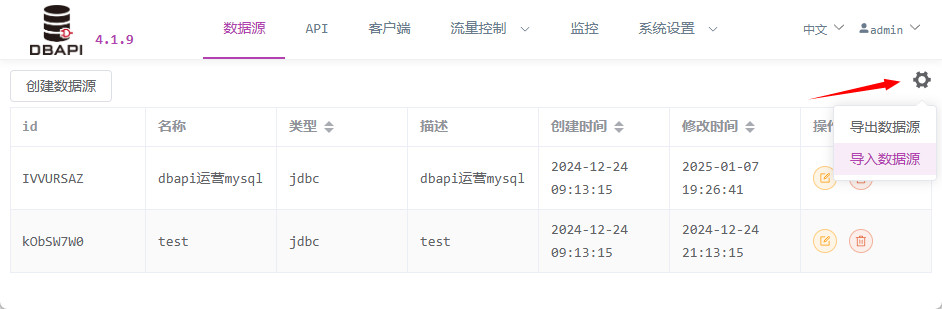
http://192.168.xx.xx:8520and log in withadmin/admin. - Import the exported data sources, groups, and API configurations.
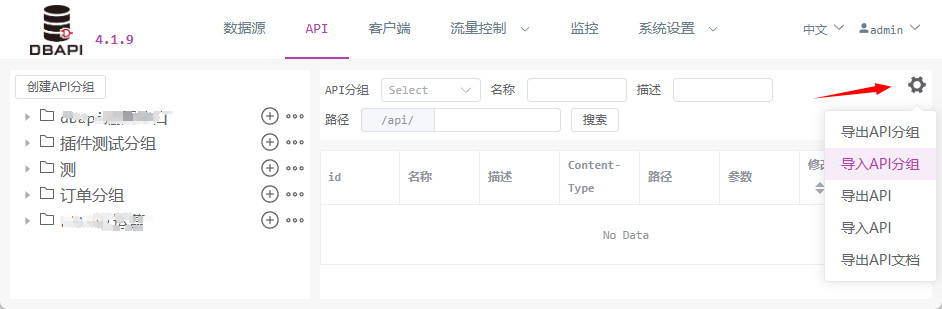
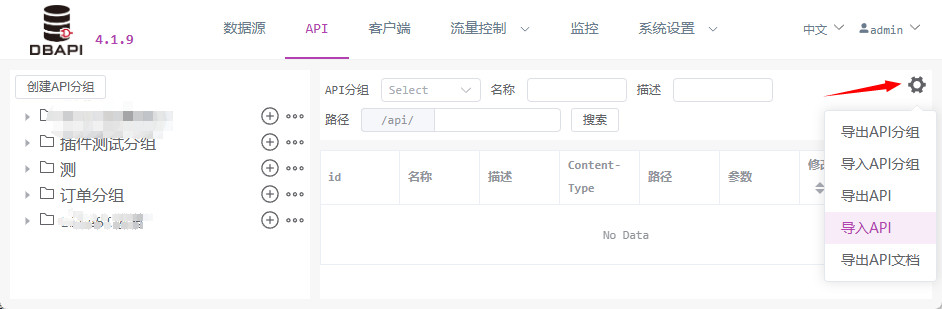
- At this point, the new version of the software is ready for use.
Personal Edition Upgrade
1. Installation and License Acquisition
- Download the latest Personal Edition software from Download and extract it.
- Start the service directly via the command line:
bash bin/dbapi-daemon.sh start standalone. Locate the serial number at the bottom of the log filelogs/dbapi-standalone.log, apply for a new free license or purchase a personal edition commercial license using the serial number, and enter the new license information into theconf/key.propertiesfile.
2. Data Migration Configuration
Scenario 1: Metadata Database is MySQL
Configure Database Connection
- Modify the metadata database address in the new version's configuration file
conf/application.propertiesto point to the metadata database address used by the previous Personal Edition.
properties
# Metadata database address configuration—use the MySQL address from the old version
spring.datasource.dynamic.datasource.meta-db.driver-class-name=com.mysql.cj.jdbc.Driver
spring.datasource.dynamic.datasource.meta-db.url=jdbc:mysql://127.0.0.1:3300/dbapi?useSSL=false&characterEncoding=UTF-8&serverTimezone=GMT%2B8
spring.datasource.dynamic.datasource.meta-db.username=root
spring.datasource.dynamic.datasource.meta-db.password=root

access.log.writer=db

# If a logging database is used, configure its address to match the old version's settings
spring.datasource.dynamic.datasource.access-log-db.driver-class-name=ru.yandex.clickhouse.ClickHouseDriver
spring.datasource.dynamic.datasource.access-log-db.url=jdbc:clickhouse://127.0.0.1:8123/default
spring.datasource.dynamic.datasource.access-log-db.username=default
spring.datasource.dynamic.datasource.access-log-db.password=123456- Follow the instructions in the Installation Document to adjust your other configurations.
Start the Service
- Run the command
bash bin/dbapi-daemon.sh start standaloneto start the service. - Once started, the original APIs will be available in the new version.
Scenario 2: Metadata Database is SQLite
Export Old Version Configurations
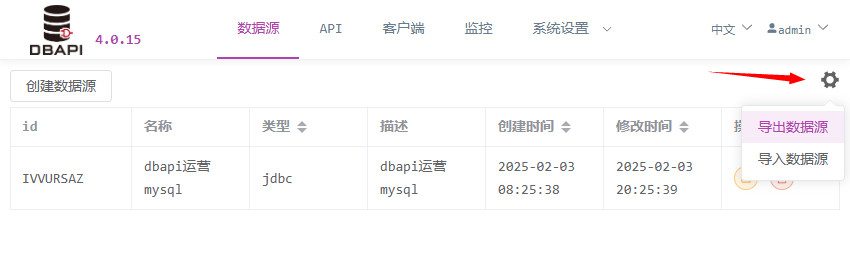
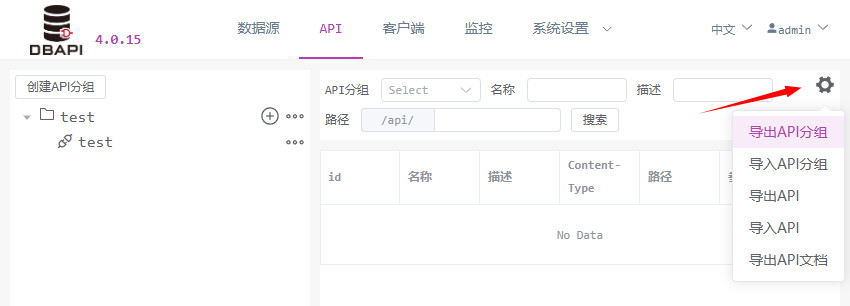
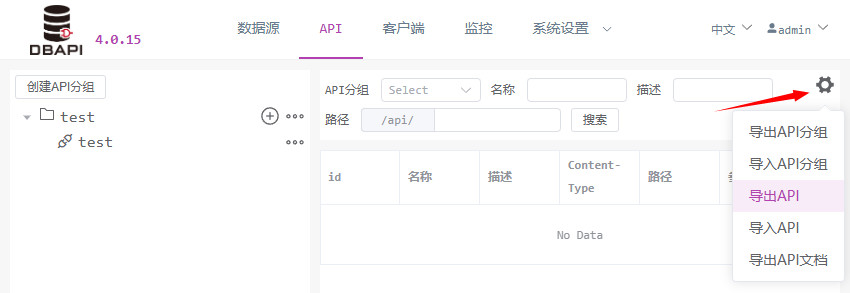
- First, export data sources, groups, and API configurations from the old version.
Configure New Version
- Adjust your configurations according to the Installation Document.
Start the Service
- Run the command
bash bin/dbapi-daemon.sh start standaloneto start the service.
Import Configurations
- After starting the service, access the new version's web interface at
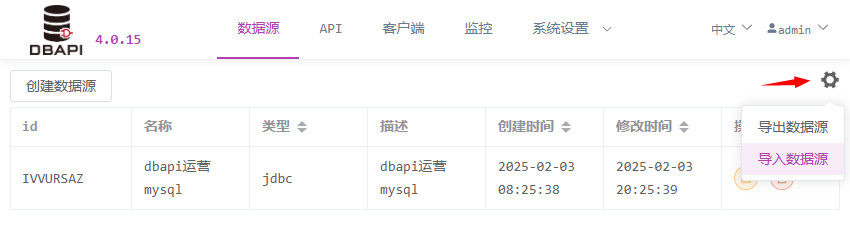
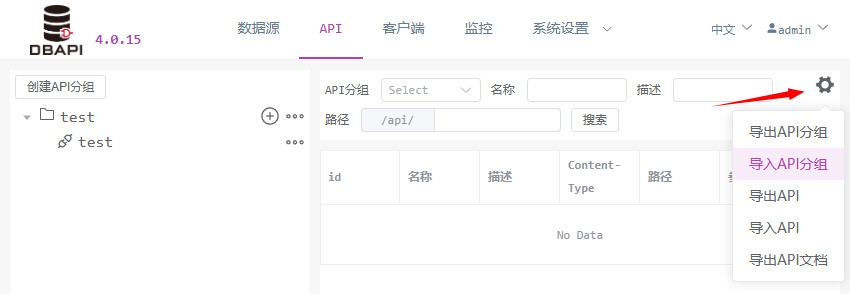
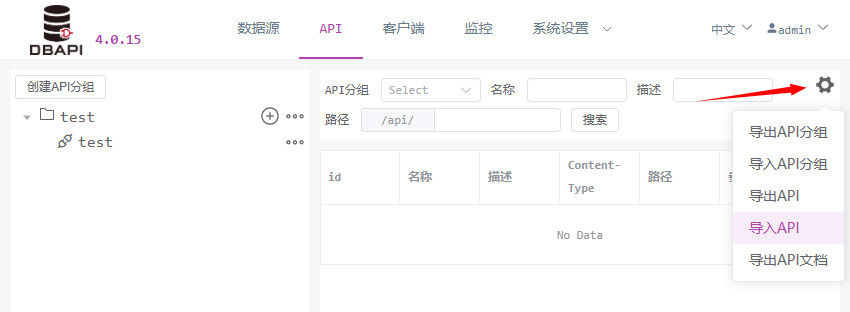
http://192.168.xx.xx:8520and log in withadmin/admin. - Import the exported data sources, groups, and API configurations.
- At this point, the new version of the software is ready for use.
Personal Edition to Enterprise Edition Upgrade
1. Installation and License Acquisition
- Download the Enterprise Edition software from Download and extract it.
- Start the service directly via the command line:
bash bin/dbapi-daemon.sh start standalone. Locate the serial number at the bottom of the log filelogs/dbapi-standalone.log, purchase a license using the serial number, and enter the new license information into theconf/key.propertiesfile.
Note:
If you plan to install the cluster edition, copy the Enterprise Edition software package to other servers and repeat the above steps (obtaining the serial number, acquiring a new license, and entering the new license) on each server.
2. Export Old Version Configurations
- First, export data sources, groups, and API configurations from the old Personal Edition.
3. Configure and Start the New Version
- Adjust the Enterprise Edition software's configurations according to the Installation Document.
- For a standalone installation, run the command
bash bin/dbapi-daemon.sh start standalone. - For a cluster installation, copy the modified configuration file to other nodes and use the command
bash bin/start-all.shto start the service.
4. Import Configurations
- After starting the service, access the new Enterprise Edition management page at
http://192.168.xx.xx:8520and log in withadmin/admin. - Import the exported data sources, groups, and API configurations.
- At this point, the new version of the software is ready for use.
Frequently Asked Questions
Port Conflicts During Startup
- If a port is already in use during the upgrade process, stop the previously running software service first, or modify the port number in the new version's configuration file and restart the service.
- The port number can be found in the
conf/application-standalone.propertiesfile.
Version Compatibility
- If the old version has a very low version number, the exported data sources, groups, and API configuration files may not be compatible with the new version due to changes in metadata structure.
- Paid users can contact customer support for technical assistance; free license users should resolve issues themselves or manually recreate the necessary configurations in the new version.
Self-Service License Acquisition
- If you are an Enterprise Edition user upgrading to the latest Enterprise Edition, you can contact customer support to obtain a new license, or acquire a new Enterprise Edition license directly from the official website.
- Click here, enter your serial number and the license for the old version (which can be obtained via email) to verify your identity, then follow the prompts to provide your email address and the new software version number. Finally, click the button to receive your new license.