Activation
What is a serial number?
A serial number is a unique hardware identifier; each server corresponds to one serial number.
DBAPI is bound to the hardware, and each machine on which it is deployed requires a license application using its serial number.
Viewing the Serial Number
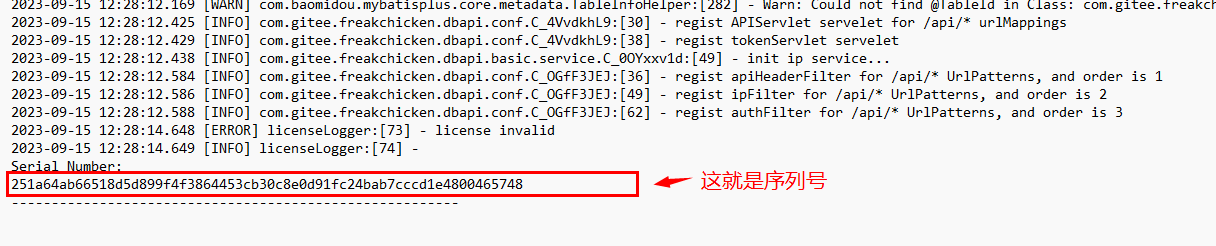
When DBAPI is started for the first time, it automatically exits. Before exiting, the serial number is printed at the end of the log file. Therefore, you must start it once to view the serial number.
If deploying in standalone mode, first check the end of the
logs/dbapi-standalone.logfile for the serial number. If deploying in cluster mode, check the end of thelogs/dbapi-apiServer.logfile on each machine for the serial number.
Applying for a License
- Visit this page to apply for a free personal edition license.
- Enter your serial number and email address, then click Submit. The system will send the license via email to you.
TIP
For cluster deployments, each machine node has its own serial number, and a separate license must be applied for each serial number.
Visit this page to purchase a paid personal edition license.
Visit this page to purchase a paid enterprise edition license.
Using the License
- Place the license in the
conf/key.propertiesfile within your installation directory:
license=xxxxxxTIP
In cluster mode, the license corresponding to each serial number must be entered into the conf/key.properties file on the respective machine node.
- After making this change, restart DBAPI to begin using the license.
Standalone mode startup script:
sh bin/dbapi-daemon.sh start standaloneOn Windows systems, right-click the bin/dbapi.ps1 file and select "Run with PowerShell."
Cluster mode startup script:
sh bin/start-all.sh