# Activation
DBAPI binds with hardware, a license required on each server
# Get the serial number
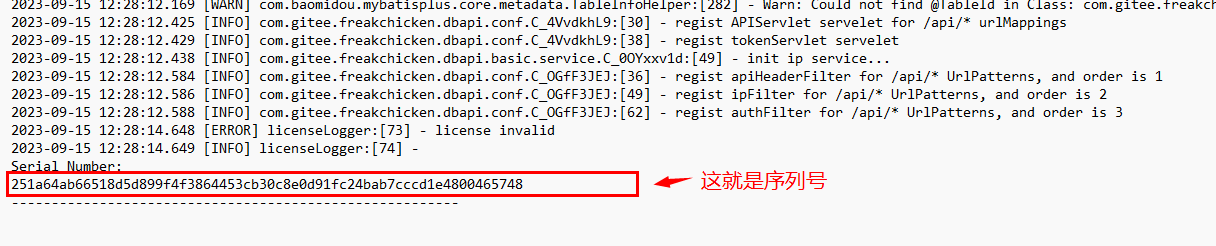
DBAPI automatically exits on the first start and the serial number is printed at the end of the log file before exit. So you must start it once to get the serial number.
For standalone mode deployment, get the serial number at the end of the
logs/dbapi-standalone.logfile. For cluster deployment, get the serial number at the end of thelogs/dbapi-apiServer.logfile for each server
# Apply for a license
- Click here (opens new window) to apply for a free license of personal edition
- Fill in your serial number and email address, click Submit, and the license will be sent to you by email
For cluster deployment, each server has a serial number, and each server requires a license
Click here (opens new window) to apply for a commercial license of personal edition
Click here (opens new window) to apply for a commercial license of enterprise edition
# Use the license
- Fill the license in the
conf/key.propertiesfile in your installation directory
In the case of cluster mode, the License of each serial number should be filled in the
conf/key.propertiesfile under the corresponding server node
license=xxxxxx
- Restart the DBAPI right now
the startup script of standalone mode
bash bin/dbapi-daemon.sh start standalone
windows System, please right-click on the
bin/dbapi.ps1file, and clickrun with PowerShell
startup script of cluster mode
bash bin/start-all.sh